
Increasing filesystem quotas on Linux

WOW! It was ages I didn't any quota management on Linux!!! But I needed to today, so a short review was needed.

First, as root I had to check what my quotas looked like:

# quota -u bronto ; echo $?
Disk quotas for user bronto (uid 1158): 
     Filesystem  blocks   quota   limit   grace   files   quota   limit   grace
/dev/mapper/homes-home
                5089700* 5000000 7000000   6days     309       0       0        
1

Oh, man! Look that "*" and that return code of "1"! I really was over quota (by chance, that was the soft limit only). I needed to increase it, so I checked the man page and did some dry runs with quotatool. After a few attempts, this line looked fine:

# quotatool -n -b -u bronto -q +2000000 -l +2000000 /home

Running it again without the "-n" showed no error, and running the quota command again confirmed everything was now fine:

# quotatool -b -u bronto -q +2000000 -l +2000000 /home
# quota -u bronto
Disk quotas for user bronto (uid 1158): 
     Filesystem  blocks   quota   limit   grace   files   quota   limit   grace
/dev/mapper/homes-home
                5089700  7000000 9000000             309       0       0        

Good, now I have some more space for my backups, and also a blog post to refer to when I'll have to increase it again in 10 years 😉

System Administrator Appreciation Day at Opera

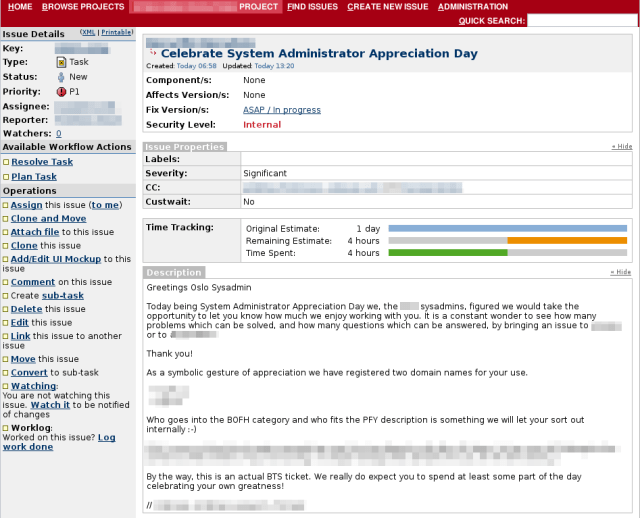
First, we found a nice ticket filed for us, where our colleagues in another office showed their appreciation.

The ticket was filed with the code MOPS-1656, and they've been so nice that they even adapted an existing comic for that:

Then, we were brought in a meeting right before lunch, whose goal was to have us all away from our offices and then go all together in the canteen. When we got in the canteen, we found two "reserved" tables for us, with balloons, candies, and filled with caffeinated beverages.

When we came back to our offices, each one of us found a little candy, and this was mine:

…and, finally… cake! A BIG cake for us!!!

So, to all my Opera colleagues, and for all those that will fill like showing their appreciation in the future, thanks.

SysAdminDay

Perl 6 is out! Erm… sort of

Nota per gli Italiani: date un'occhiata all'annuncio sul sito Perl.it.

OK, it is not the great day that we all Perlers are longing to see, but it's definitely a notable one. The Rakudo and Perl 6 development teams have just announced the release of Rakudo Star, "a useful and usable distribution of Perl 6".

The announcement says:

Rakudo Star is aimed at "early adopters" of Perl 6. We know that it still has some bugs, it is far slower than it ought to be, and there are some advanced pieces of the Perl 6 language specification that aren't implemented yet. But Rakudo Perl 6 in its current form is also proving to be viable (and fun) for developing applications and exploring a great new language.

It's just like mom bought me a new toy to play with 🙂

So, what’s this ntp server doing?

Debugging a multicast ntp server today. I want to see if it's throwing the right IGMP packets, and if it will finally throw those damned NTP multicast packets.

tcpdump comes to the rescue, and it turns out that ntpd is not doing what it's supposed to do, so I am in for further debugging and research 😦

By the way, the tcpdump line I used is:

tcpdump '( (ip multicast) and (dst port ntp) ) or igmp '

PS: forgot to say: that's a Debian Lenny system.

Creating a parser with Parse::RecDescent

Thanks God, configuration files are everywhere, so that you don't have configuration information hardcoded into your programs anymore. And if you have… well, at least you know it's bad practice, don't you?

Anyway, configuration files need to be parsed to extract the information they hold. If the format is a well-known one, you will probably find a library for your favourite language that will do the work for you. If it's not, but it's line-based and simple enough, then writing a parser may be easy. If it's an XML file, things get more complicated but still doable: just use one of the many parsing library around, look for the relevant XML elements, and you're done. Or, if it is up to you to choose the file format, you may use one that is tailored for your configuration library of choice –mine happens to be the AppConfig Perl module.

But, what to do when you fall out of the easy cases? … Continue reading

OpenSolaris: other good signs….

A OpenSolaris Hackathon was just announced. The event will take place in London, and the way the announcement was made seems to open up for good hopes:

Apologies for the late notice, I'm proud to announce what will hopefully be many OpenSolaris Hackathons!

even though they feel the need to say:

This is a community event held by community members and is in no way affiliated with Oracle.

Keep your fingers crossed…

VirtualBox: properly renaming virtual applications (updated)

This is one thing that I am doing quite often: create a "gold image" system, export it as a Virtual Application, and then create a number of clones from that. Unfortunately, VirtualBox doesn't change the MAC address of the network interfaces, so if you clone N systems, they will end all with the same MAC… Ouch!!! And what about host names?

So, let's see how to properly rename the system (both hostname and MAC). Note that there may be other stuff you need to change (like, for example, server SSH keys). We'll make a concrete example here:

  1. the "golden image" isn't a running system (we can safely start a clone of it without screwing the network or anything else)
  2. the "golden image" is a Debian system (Lenny, in my specific case)
  3. the "golden image" hostname is golden, the name of the clone will be newname

First thing: start the system and log in as root. Then:

vi /etc/hosts /etc/hostname

In vi, do:

:%s/golden/newname/g
:w
:n
:s
:wq

These instructions will:

  • change all occurences of golden to newname
  • write out the file
  • switch to the next file
  • repeat the substitution
  • save and exit

Then move away some annoying udev rules:

mv /etc/udev/rules.d/70-persistent-net-rules{,.save}

Now shut down the system:

shutdown -h now

Once the system is down, run the VirtualBox gui and select the settings for the new system; get to the advanced network settings and push the "recycle" button to generate a new MAC. Do this for each interface the machine has. Then save the settings and boot again.

…and you are done 😉 Have fun with your new clone!

Update: if your golden image can't be switched off, you can use the following procedure.

Before booting the new machine, set both interfaces as they had the cable unplugged, and generate a new MAC address for each interface straight away. Then boot it, and do all the file changes as described above, including moving away the 70-persistent-net-rules file. Now plug the virtual interfaces by right clicking on the network icon at the bottom of the console, selecting the Network Interface item and ticking the corresponding checkbox.

You are done, and once you reboot you'll see your system come up with its new name and with the network interfaces properly configured.