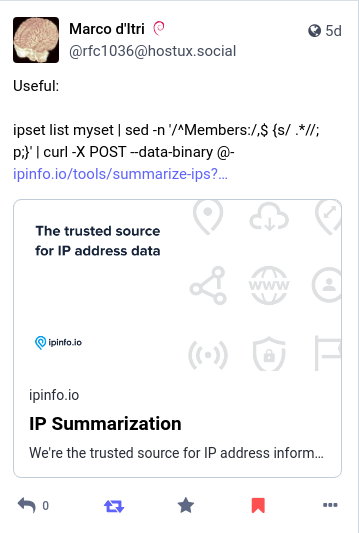
A few days ago I saw this post from Marco d’Itri on Mastodon. He is such an expert in Networking matters that if he says that a tool is useful, it is a good reason in itself to try it out even if networking is not your daily bread. So I tested ipinfo and indeed it’s so great that I immediately added it to all my PCs!
Ipinfo is the official CLI for the IPinfo.io IP address API. It collects in a single tool some of the functionality offered by other tools like whois or ipcalc (for example), in addition to geolocation, subnetting, IP validation, and more.
Before I start presenting my favourite functionalities, please note that there is a limit of 1000 API calls per IP for non-authenticated requests. If you need more, you must use the authenticated API, which also includes an option for a free plan.
Getting information about an IP
Similar to whois, but with a terse output and including geolocation information:
$ ipinfo 8.8.8.8
Core
- IP           8.8.8.8
- Anycast      true
- Hostname     dns.google
- City         Mountain View
- Region       California
- Country      United States (US)
- Currency     USD ($)
- Location     37.4056,-122.0775
- Organization AS15169 Google LLC
- Postal       94043
- Timezone     America/Los_Angeles
My IP
The command
ipinfo myip
is very useful when your Internet connection goes through a NAT device. ipinfo will find your public IP and show all the information related to that IP, just like when you query any other IP. If you just need to extract the IP (f.e. in a script), you can filter for just that:
ipinfo myip -f ip | tail -n 1
Grep IP
When you want to extract IP addresses (IPv4, IPv6, or both) from a text file, you can use:
ipinfo grepip filename    # shows lines containing IPs and highlights them
ipinfo grepip -o filename # looks up IPs in the file and prints them
ipinfo grepip -4 filename # as above, but only looks up IPv4 addresses
ipinfo grepip -6 filename # as above, but only looks up IPv6 addresses
You can also use ipinfo grepip to filter a stream of text, for example in a pipe with other commands:
wget -O - http://example.com/address-database.txt | ipinfo grepip -6
CIDR to range
When you have an IP range in CIDR notation and you want to know what interval of addresses is represented by that range you can use ipinfo cidr2range. It works with both IPv4 and IPv6 addresses:
$  ipinfo cidr2range fe80::4580:d144:cdee:ae16/64
fe80::-fe80::ffff:ffff:ffff:ffff
$ ipinfo cidr2range 192.168.100.0/22
192.168.100.0-192.168.103.255
Range to CIDR
When you have a range of IPs, and you want to know how it can be expressed in one or more CIDR ranges, you can use ipinfo range2cidr:
$ ipinfo range2cidr 192.168.0.0-192.168.0.191
192.168.0.0/25
192.168.0.128/26
Split CIDR
ipinfo splitcidr is useful when you have a large range and you want to split it in subranges. E.g. let’s say you have a VPC in AWS whose range is 10.10.0.0/16, and you want to break it down in /19 chunks:
$ ipinfo splitcidr 10.10.0.0/16 19
10.10.0.0/19
10.10.32.0/19
10.10.64.0/19
10.10.96.0/19
10.10.128.0/19
10.10.160.0/19
10.10.192.0/19
10.10.224.0/19
If you want to have these CIDR ranges expressed as IP ranges, you can just pipe ipinfo splitcidr in ipinfo cidr2range:
$ ipinfo splitcidr 10.10.0.0/16 19 | ipinfo cidr2range
10.10.0.0-10.10.31.255
10.10.32.0-10.10.63.255
10.10.64.0-10.10.95.255
10.10.96.0-10.10.127.255
10.10.128.0-10.10.159.255
10.10.160.0-10.10.191.255
10.10.192.0-10.10.223.255
10.10.224.0-10.10.255.255
Tools
The ipinfo tool subcommand provides a number of very useful tools, among which I’ll mention:
is_ipv4reports if the given input is an IPv4 addressis_ipv6reports if the given input is an IPv6 addressis_validreports if the given input is a valid IP addressprefix is_validreports if a given input is a valid CIDR range
Installation
Ipinfo is available for many operating systems, in packages of different formats. Refer to the installation instructions in Github, or refer to the Releases page for the manual installation from one of the provided packages.
Documentation
There is no “formal” documentation, but you can refer to the Quick Start section of the README in Github.
 In the past months I have made several attempts to explore Docker overlay networks, but there were a few pieces to set up before I could really experiment and… well, let’s say that I have probably approached the problem the wrong way and wasted some time along the way. Not again. I have set aside some time and worked agile enough to do the whole job, from start to finish. Nowadays there is little point in creating overlay networks by hand, except that it’s still a good learning experience. And a learning experience with Docker and networking was exactly what I was after.
 A sysadmin's logbook