Plain simple dependency diagram with GraphViz

This is a note-to-self style post 😉

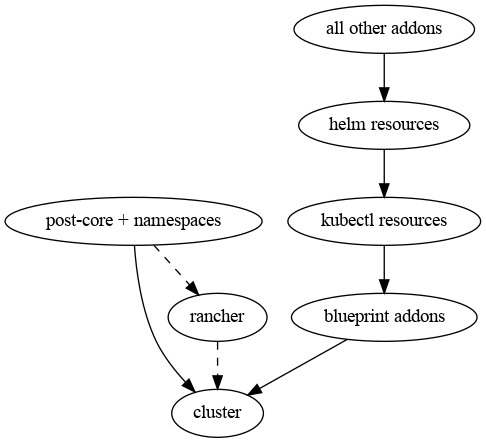
Today I needed a simple graph to propose a re-engineering of a Terraform module of ours. I could of course use a tool like LibreOffice Draw, or maybe ask AI to give it a shot; but being the graph so simple, I thought I would just resume the little knowledge of GraphViz I had from before to solve this even quicker. I fired a couple of quick questions to ChatGPT to refresh the basics, and woop! In 5 minutes I had my graph:

digraph ModEks {
  cluster;
  postcore [label="post-core + namespaces"];
  rancher;
  blueprint [label="blueprint addons"];
  kubectl [label="kubectl resources"];
  helm [label="helm resources"];
  addons [label="all other addons"];
  
  rancher -> cluster [style=dashed];
  postcore -> rancher [style=dashed];
  postcore -> cluster;
  blueprint -> cluster;
  kubectl -> blueprint;
  helm -> kubectl;
  addons -> helm;
}

I think it’s easy to understand what this code does (and if not, it will be once you glance at the diagram), so I’ll skip the explanation.

I saved this code into a file called ModEks.dot and then ran this command in a terminal:

dot -T png ModEks.dot -o ModEks.png

…and there was my graph:

Invalid signatures from the Dropbox repository

When updating the packages on my Debian I get this error every now and then, and it’s really annoying:

W: GPG error: http://linux.dropbox.com/debian bookworm Release: The following signatures were invalid: BADSIG FC918B335044912E Dropbox Automatic Signing Key <linux@dropbox.com>
E: The repository 'http://linux.dropbox.com/debian bookworm Release' is not signed.
N: Updating from such a repository can't be done securely, and is therefore disabled by default.
N: See apt-secure(8) manpage for repository creation and user configuration details.

An internet search about the problem will throw a lot of different solutions at you. Some of them are quite heavy-handed. Some of them just don’t work. Most of them don’t really explain what you are doing when you run the commands you run. I checked a bunch of them and found my own solution.

My understanding of the problem is that packages lists from the Dropbox repository get corrupted for some reason, and this happens way more often with that repo than with any other I am using. When that happens, there may be something left in /var/lib/apt/partial, and it’s better to download the package information for that repository from scratch.

As root (e.g. after running sudo -s or sudo -i), run

find /var/lib/apt/lists -type f -name \*dropbox\* -print | xargs rm

This command will find all files (-type f) whose name contains the string “dropbox” (-name \*dropbox\*) under the directory /var/lib/apt/lists and its subdirectories, and then pass them as arguments to the rm command (xargs rm), hence deleting them.

When that is done, run apt update again and, hopefully, the error will be gone (well, unless the package information gets corrupted once again, that is…).

HTH!

Five DNS client tools, and how to use them

Everything is a Freaking DNS problem“, as Kris Buytaert often puts it. Debugging any distributed system can be a daunting task in general, and DNS is no exception. But even debugging an internal DNS service, which won’t be as nearly as distributed as the global domain name service, may turn out to be an unpleasant experience: think Kubernetes and coredns, for example.

Debugging DNS-related problems in containers running in Kubernetes can be a challenge indeed, in that containers running in a cluster may be based on completely different Linux images, each one sporting a different DNS client, if any. In those cases, it’s better to have an idea on how to use whatever client you happen to find on those containers, or install one yourself. Fear not, I have prepared an outline, just for you!

nslookup, the oldies but goldies

nslookup is maybe the first generation of DNS query tools that comes from the BIND DNS server project. It can be used in both interactive and non-interactive mode. In the non-interactive mode you make a query directly on the command line, you get an answer, and the command exits:

$ nslookup www.google.com
Server:		1.1.1.1
Address:	1.1.1.1#53

Non-authoritative answer:
Name:	www.google.com
Address: 142.250.74.100
Name:	www.google.com
Address: 2a00:1450:400f:80c::2004

nslookup uses the name servers that are configured on your system by default. You can use a different one by specifying it on the command line as the second argument:

$ nslookup www.google.com 8.8.8.8
Server:		8.8.8.8
Address:	8.8.8.8#53

Non-authoritative answer:
Name:	www.google.com
Address: 216.58.211.4
Name:	www.google.com
Address: 2a00:1450:400f:801::2004

If you run nslookup without arguments, you enter interactive mode, in which you can run several queries and also tweak how the query is performed

$ nslookup
> www.google.com
Server:		1.1.1.1
Address:	1.1.1.1#53

Non-authoritative answer:
Name:	www.google.com
Address: 142.250.74.132
Name:	www.google.com
Address: 2a00:1450:400f:803::2004
> www.facebook.com
Server:		1.1.1.1
Address:	1.1.1.1#53

Non-authoritative answer:
www.facebook.com	canonical name = star-mini.c10r.facebook.com.
Name:	star-mini.c10r.facebook.com
Address: 31.13.72.36
Name:	star-mini.c10r.facebook.com
Address: 2a03:2880:f10a:83:face:b00c:0:25de
> set querytype=mx
> gmail.com
Server:		1.1.1.1
Address:	1.1.1.1#53

Non-authoritative answer:
gmail.com	mail exchanger = 10 alt1.gmail-smtp-in.l.google.com.
gmail.com	mail exchanger = 20 alt2.gmail-smtp-in.l.google.com.
gmail.com	mail exchanger = 40 alt4.gmail-smtp-in.l.google.com.
gmail.com	mail exchanger = 30 alt3.gmail-smtp-in.l.google.com.
gmail.com	mail exchanger = 5 gmail-smtp-in.l.google.com.

Authoritative answers can be found from:
> 

In the example above, we query the DNS server for the address of www.google.com and www.facebook.com. Then we switch the query type to MX (mail exchanger), and we check which servers handle email for the gmail.com domain.

This should be enough to get you going, see the nslookup man page for more info.

host, nslookup’s younger brother

host is the second generation of DNS query tools from the BIND project. Its basic usage is:

$ host www.google.com
www.google.com has address 216.58.207.228
www.google.com has IPv6 address 2a00:1450:400f:80c::2004

Like nslookup, you can specify a DNS server to resolve your query as the second argument of the command:

$ host www.google.com 8.8.8.8
Using domain server:
Name: 8.8.8.8
Address: 8.8.8.8#53
Aliases: 

www.google.com has address 142.250.74.100
www.google.com has IPv6 address 2a00:1450:400f:80b::2004

And you can query different types of records as well, like e.g. MX:

$ host -t mx gmail.com
gmail.com mail is handled by 10 alt1.gmail-smtp-in.l.google.com.
gmail.com mail is handled by 20 alt2.gmail-smtp-in.l.google.com.
gmail.com mail is handled by 40 alt4.gmail-smtp-in.l.google.com.
gmail.com mail is handled by 30 alt3.gmail-smtp-in.l.google.com.
gmail.com mail is handled by 5 gmail-smtp-in.l.google.com.

host has no interactive mode, but that doesn’t mean you can’t tweak your queries. In fact, a number of command line options are there to help you. See the host man page for more info.

dig, the swiss army knife

dig is the third generation tool for DNS queries from the BIND project. It’s very powerful in that it reports a lot of data about your queries and you can fine tune it in all possible ways. At the same time, it’s default format is very verbose, which makes it quite confusing at first.

Let’s query www.google.com once again, using dig:

$ dig www.google.com

; <<>> DiG 9.16.44-Debian <<>> www.google.com
;; global options: +cmd
;; Got answer:
;; ->>HEADER<<- opcode: QUERY, status: NOERROR, id: 9932
;; flags: qr rd ra; QUERY: 1, ANSWER: 1, AUTHORITY: 0, ADDITIONAL: 1

;; OPT PSEUDOSECTION:
; EDNS: version: 0, flags:; udp: 1232
;; QUESTION SECTION:
;www.google.com.			IN	A

;; ANSWER SECTION:
www.google.com.		285	IN	A	142.250.74.100

;; Query time: 4 msec
;; SERVER: 1.1.1.1#53(1.1.1.1)
;; WHEN: Sun Sep 24 22:56:36 CEST 2023
;; MSG SIZE  rcvd: 59

Quite chatty as you can see. You can make it less chatty easily though:

$ dig +short www.google.com
142.250.74.68

Here you see that only the IPv4 address was reported, but we know from previous examples that www.google.com also has IPv6 addresses, so why aren’t they displayed?

By default, dig resolves names to addresses by querying A records, and addresses to names by querying PTR records. DNS names are associated to their IPv6 addresses in AAAA records, and that’s what you need to query in order to resolve those. The two command lines below are equivalent:

$ dig +short -t AAAA www.google.com
2a00:1450:400f:804::2004
$ dig +short www.google.com AAAA
2a00:1450:400f:804::2004

If you want to use a DNS server other than the default, set it as the first argument of the command, prefixed by @:

$ dig +short @8.8.8.8 www.google.com AAAA
2a00:1450:400f:803::2004

This is just a brief introduction, but I can’t just leave you to the man page for dig: it’s so large and complete that it may feel as daunting as the DNS problems you are trying to debug. In that case, have a look at Julia Evans’ comics about dig and how to read dig output.

Finally, remember that you can use a .digrc file to set your default options instead of specifying them all the time on the command line like I just did (although you may not do that when debugging a problem inside a container). Check the man page for info.

getent, back to basics

getent is probably the oldest tool to offer name resolution capabilities. I don’t have any proof to support my claim, but it’s actually the absence of any historical information from both the man page and the source code that makes me believe that it has been around forever.

Whatever the birthdate, getent is also a different type of beast compared to the three tools we have seen so far. In fact, while nslookup, host, and dig are specialised on DNS only, getent is a more general tool that can be used to query several system databases like, e.g., the password file:

$ getent passwd root
root:x:0:0:root:/root:/bin/bash

getent is also different in the way it does name resolution. In fact, getent leverages the C library directly, and resolves names according to the configuration in /etc/nsswitch.conf. Explaining the Name Service Switch functionality is definitely out of scope here; suffice it to say that, depending on how the functionality is configured, not only will getent return names resolved via DNS, but also names resolved through the hosts file or the .local names in our home network. You need to keep that in mind in case you are querying a name that is registered in both DNS and the hosts file, for example.

But enough talking! So, how does one resolve a name with getent?

$ getent hosts www.google.com
2a00:1450:400f:80c::2004 www.google.com

OK, this is only one address and an IPv6 one though. Any ways around that? Of course!

$ getent ahosts www.google.com
2a00:1450:400f:80a::2004 STREAM www.google.com
2a00:1450:400f:80a::2004 DGRAM  
2a00:1450:400f:80a::2004 RAW    
216.58.207.228  STREAM 
216.58.207.228  DGRAM  
216.58.207.228  RAW

A bit verbose, but you have both IPv4 and IPv6. What about if you only want one of the two?

$ getent ahostsv4 www.google.com
216.58.207.228  STREAM www.google.com
216.58.207.228  DGRAM  
216.58.207.228  RAW    
$ getent ahostsv6 www.google.com
2a00:1450:400f:80a::2004 STREAM www.google.com
2a00:1450:400f:80a::2004 DGRAM  
2a00:1450:400f:80a::2004 RAW

getent also allows for resolving more than one name with one single call:

$ getent hosts www.google.com www.facebook.com
2a00:1450:400f:80a::2004 www.google.com
2a03:2880:f10a:83:face:b00c:0:25de star-mini.c10r.facebook.com www.facebook.com

What if you want to query other DNS record types besides doing name resolutions, or use a different name server than the one that’s configured in the system? You can’t. getent is part of the C library tools and uses system calls to query information (e.g. gethostbyname or gethostbyaddr) and those calls don’t include the resolution of other record types.

getent is small and lightweight, so it may appear even in lightweight base images, unless their creators really went hard on the optimization. It’s worth to know the basics just in case it’s the only DNS query tool that you have at hand. See the man page for more information.

resolve, the hidden perl

resolve is a Perl script that I wrote when I didn’t know about getent. The functionality is the same in that it uses system calls under the hood to do name resolution, but I believe it provides a more consistent and complete output compared to getent. An example:

$ resolve www.google.com www.facebook.com
www.google.com ipv6 2a00:1450:400f:80c::2004
www.google.com ipv4 172.217.21.164
www.facebook.com alias star-mini.c10r.facebook.com
www.facebook.com ipv6 2a03:2880:f10a:83:face:b00c:0:25de
www.facebook.com ipv4 31.13.72.36

Just as getent hosts, resolve can resolve more than one name at a time. Unlike getent, it clearly marks IPv4 and IPv6 addresses, and it clearly reports about aliases/CNAMEs, too.

You can find more details about resolve and why I wrote it in the article Name/address resolution from the perspective of the OS in this same blog. You’ll find the code, installation instructions, and a description of the differences between resolve and getent in the GitHub repository.

If you come across a container that is so stripped down to not have any of the other tools, but it has Perl, you can as well give resolve a try. On the other hand, I don’t expect you to really come across such a case so often, so you may as well fall back to the last resort…

The last resort

If the container you are debugging in has no DNS tools and no Perl, your last resort is to install one of these tools yourself, if you know how to use that container’s distribution package management tools. If you don’t, then you need an article like this one, but for package managers. Shall we write one together? I volunteer for apt!

Welcome bookworm! And how to continue running apt-get update

Debian 12 “bookworm” was officially released two days ago, yay!

And just like me, this morning your attempt to update the apt package cache may have been met by an odd notification similar to this one:

E: Repository 'http://deb.debian.org/debian testing InRelease' changed its 'Codename' value from 'bookworm' to 'trixie'
N: This must be accepted explicitly before updates for this repository can be applied. See apt-secure(8) manpage for details.

Why it’s happening

I have this source configured in apt:

deb-src http://deb.debian.org/debian/ testing main contrib non-free

The source refers to the distribution “testing”. The codename for testing is the same of the next Debian release. Before the release of Debian 12 it was “bookworm”. Now that bookworm is released, that codename switched to “trixie”. In my particular case, this is more or less harmless, as this source is not going to trigger the installation of any package. But if I was using “testing” or “stable” in my apt sources, that would make a difference: I may unintentionally install packages from Debian 12 on my Debian 11 and make a mess of my system.

The error and the notification are there to warn you that there was a codename change, and that you should consider if this is expected and you actually want to continue, or if you’d rather lock your sources to the current codename instead (that would be “bullseye” in Debian 11’s case).

What to do

Lock your package sources to the correct codename. E.g. if you are running Debian 11 and you have “stable” in your apt sources for the official Debian repositories, replace “stable” with “bullseye”. Note that for third party repos this may be different, check with the vendor for instructions.

If, like in my case, the change is harmful, you need to let apt know that you approve the change. That’s what we’ll see below in detail.

Accepting the codename change

The notification points to apt-secure. If you are like me, the next command you ran was man apt-secure. That helped finding more about the reason why this was happening, but not with the solution, alas:

INFORMATION CHANGES
       A Release file contains beside the checksums for the files in
       the repository also general information about the repository
       like the origin, codename or version number of the release.

       This information is shown in various places so a repository
       owner should always ensure correctness. Further more user
       configuration like apt_preferences(5) can depend and make use
       of this information. Since version 1.5 the user must therefore
       explicitly confirm changes to signal that the user is
       sufficiently prepared e.g. for the new major release of the
       distribution shipped in the repository (as e.g. indicated by
       the codename).

This is nice. Except that it doesn’t mention how one is supposed to explicitly confirm changes.

Some more digging and the man page of apt-get provided the solution:

       --allow-releaseinfo-change
           Allow the update command to continue downloading data from
           a repository which changed its information of the release
           contained in the repository indicating e.g a new major
           release. APT will fail at the update command for such
           repositories until the change is confirmed to ensure the
           user is prepared for the change. See also apt-secure(8) for
           details on the concept and configuration.

           Specialist options (--allow-releaseinfo-change-field) exist
           to allow changes only for certain fields like origin,
           label, codename, suite, version and defaultpin. See also
           apt_preferences(5). Configuration Item:
           Acquire::AllowReleaseInfoChange.

Running apt-get update –allow-releaseinfo-change returned the notification part again (the message prefixed with “N:“) but not the error (“E:“). Subsequent runs of apt/apt-get ran as usual. Problem solved 🙂

apt-key is deprecated, part 2

In my first article about the deprecation of apt-key I illustrated a few ways of adding APT repository keys to your system without using the apt-key command. A good follow-up discussion to that article started on twitter (thanks to Petru Ratiu). The topics we discussed were: the use of the signed-by clause and if it really helps increasing security; the use of package pinning to avoid third-party packages taking over official packages; and the pollution of system directories.

In this post we dig a bit deeper into these topics and how they help, or don’t help, making your system more secure. A TL;DR for the impatient is included at the end of each section.

Continue reading

apt-key is deprecated, now what?

It’s only a few weeks since I upgraded one of my systems from Debian 10 to Debian 11. In fact, I use to apply a “Debian distribution quarantine”: when a new major version of the distribution is out, I usually wait until a “.1” or “.2” minor version before installing it, as I don’t have enough time to debug problems that may have escaped Debian’s QA process at the very first release.

One of the first things that catch one’s attention when I ran the apt-key command in Debian 11 (e.g. a simple apt-key list) was a warning:

Warning: apt-key is deprecated. Manage keyring files in trusted.gpg.d instead (see apt-key(8))

“Deprecated” usually means that a certain functionality will be eventually removed from the system. In this case, Ubuntu users will be hit already in 2022 with the release of 22.10 in October as the command will be available last in the next LTS (22.04) to be released in April. Debian users will have more time, as the command won’t available in the next major release of Debian (supposedly Debian 12, that may be a couple of years away). This is written in clear letters in the man page:

apt-key(8) will last be available in Debian 11 and Ubuntu 22.04.

So, what are you supposed to do now in order to manage the keys of third party APT repositories?

Continue reading

Bash scripting: using ‘read’ without a loop

Another post in the “note to myself” style.

For anyone who does bash scripting, the command read is a well known tool. A usual task that we use read for it is to process the output of another command in a while loop, line by line, picking up a few fields and doing something with them. A stupid example:

sysctl -a 2> /dev/null | grep = | while read PARM DUMMY VALUE
do
  echo "Value for $PARM is $VALUE"
done

That is: we read the output of sysctl, line by line, selecting only the lines that contain a = sign, then read the name of the setting and its value in PARM and VALUE respectively, and do something with those values. So far so good.

Based on what we have just seen, it’s easy to expect that this:

echo foobar 42 | read PARM VALUE
echo "Value for $PARM is $VALUE"

would print “Value for foobar is 42“. But it doesn’t:

Value for  is 

So, where did those values go? Did read work at all? In hindsight I can tell you: yes, it worked, but those values have disappeared as soon as read was done with them. To both parse them and use them you have to run both read and the commands using the variables in the same subshell. This works:

echo foobar 42 | ( read PARM VALUE ; echo "Value for $PARM is $VALUE" )

Or even

echo foobar 42 | (
    read PARM VALUE
    echo "Value for $PARM is $VALUE"
)

This will print “Value for foobar is 42”, as expected.

Reading one-line lists with the Bash shell

Commands like the AWS CLI may return a list of values all in one line, where each item in the list is separated by the nearby items with spaces. Using a plain read command doesn’t really work: read will read all the values in one go into the variable. You need to change the delimiter that read uses to split the input. No need to pipe the output through Perl or other tools, read got you covered with the -d option.

In this example I get the list of the ARNs of all target groups in an AWS account, and then iterate over those ARNs to list all the instances in each target group. The ouput will also be saved into a file through the tee command:

aws elbv2 describe-target-groups \
  --query 'TargetGroups[].TargetGroupArn' \
  --output text | \
  while read -d ' ' ARN ; do \
    echo -n "$ARN: " ; \
    aws elbv2 describe-target-health \
      --target-group-arn "$ARN" \
      --query 'TargetHealthDescriptions[].Target.Id' \
      --output text ; sleep 1 ; \
  done | \
  tee tg-instances.txt

The ouput of this one liner will be in the format:

ARN: instance_ID [instance_ID...]

Things to notice:

  • the AWS CLI’s describe-target-groups command will list all target groups’ ARNs thanks to the --query option and list as many as possible on single lines, according to the shell’s output buffer capacity; the ouput is piped through a while loop;
  • the while loop uses read -d ' ' to split each line at spaces and save each item in the $ARN variable, one per cycle;
  • the echo command prints the value of $ARN followed by a colon, a space, but will not output a newline sequence due to the -n option;
  • the AWS CLI’s describe-target-health command will list all target IDs thanks to the --query option and print them out in a single line; it will also provide a newline sequence, so that the next loop will start on a new line;
  • the sleep 1 command slows down the loop, so that we don’t hammer the API to the point that they will rate limit us;
  • finally, the tee command will duplicate the output of the while loop to both the standard output and the file tg-instances.txt.

Automating installation/updates of the AWS CLI on Linux

Are you annoyed that there are no native Linux packages for the AWS CLI (deb, rpm…)? And, thus, no repositories? I am, a bit.

But it’s also true that the installation is not difficult at all, right? Well, yes, if you want to install it in locations different than the defaults (e.g. your user’s home directory) and on more than one machine you still have to do some work, but it’s not terrible, is it?

Then, one day, you find that one of the AWS CLI commands you need to use was added in a newer version than the one you are running, so you have to update the AWS CLI on all machines, and possibly rediscover the parameters you used during the initial installation. Are you happy with that?

I am not, and I decided to do something to automate the process: a Makefile, the simplest form of automation you can have on UNIX systems. Here you go: aws-cli-manager on github.

If you find it useful, I am happy. And if you want to support more Linux distributions or more operating systems (MacOS should be fairly easy, I expect), just go ahead and throw me a pull request. Enjoy!